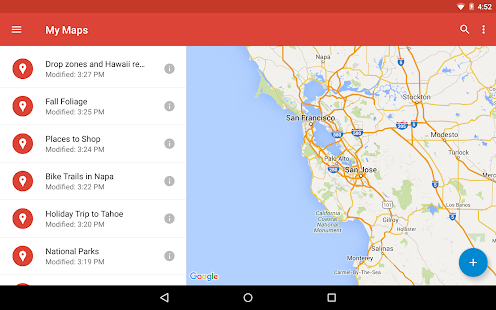
About: Google "My Maps" enables teachers and learners to create custom maps. Users can add points, lines, and shapes on top of Google Maps, using a WYSIWYG editor.
Showing posts with label Citizenship. Show all posts
Google "My Maps" - Easily create custom maps with the places that matter to you.
About: Google "My Maps" enables teachers and learners to create custom maps. Users can add points, lines, and shapes on top of Google Maps, using a WYSIWYG editor.
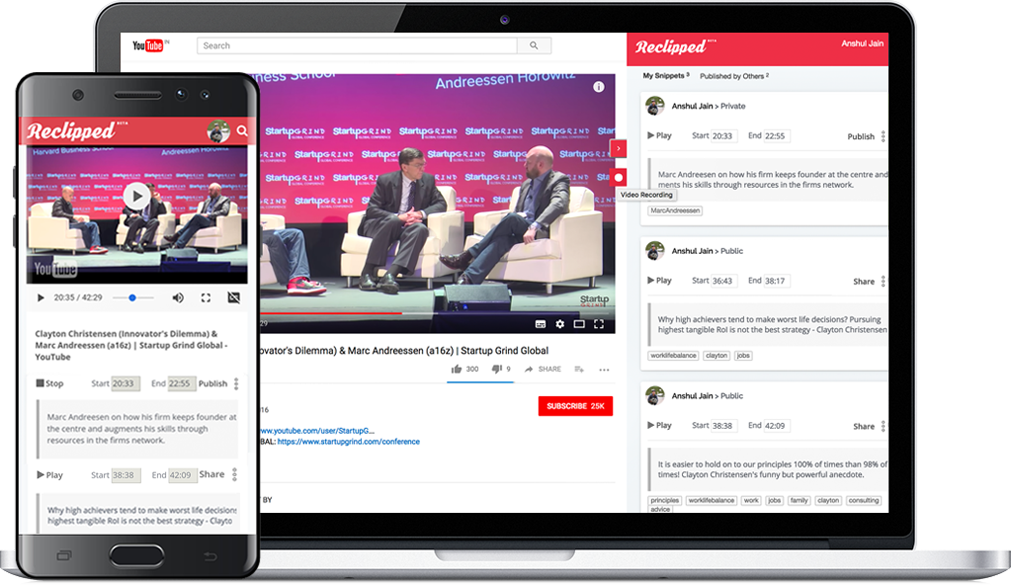
ReClipped - Annotate, collect, and share parts of online videos
Web Address: https://www.reclipped.com/
In thier own words: "Preparing for an exam or adding a new skill to your repertoire? If videos form an integral part of your learning, ReClipped will help you maximise it. Add notes on videos, collect segments to revise, study in groups - on platform of your choice, from your favourite device."
Google Tour Builder
In their own words: "Tour Builder is a new way to show people the places you've visited and the experiences you had along the way using Google Earth. It lets you pick the locations right on the map, add in photos, text, and video, and then share your creation."
Connected Mind - A nice Mind mapping app for Google Chrome, iOS and Android.
In their own words: "Draw unique and memorable mind maps, store them in the cloud for free and access them anywhere
At last it is possible to create a mind map as individual and easy to imprint on your mind as one drawn by hand on paper. The mind maps you create with Connected Mind are even better as you can easily include images and shapes and you have a whole rainbow of colors and a selection of fonts at your disposal.
There is no limit to the number of maps you can create and you can store them in the free cloud storage provided. There is no need to create an account. Simply sign in with your Google or GMail credentials and your maps can be stored in the cloud on a google database.
Once stored in the cloud, you can access your mind maps from any computer that has Google Chrome installed.
You can also take you mind maps with you wherever you go with the Connected Mind Android app available from the Android Play (http://goo.gl/7oBhK) and the iPad app available from the App Store (https://itunes.apple.com/us/app/connected-mind/id659803223). You can open and edit any of your maps created in Chrome on Android or iOS, and vice versa.
Features
✓ Complete control over map layout
✓ Unlimited undo/redo
✓ Shortcut keys for common operations
✓ Speech recognition - speak the text of your branches
✓ Free cloud storage for every user (no need to create an account)
✓ Choice of over 60 fonts that don't need to be installed
✓ Add rich format notes, including images and links, to any map item
✓ Notes displayed as you move your mouse over items
✓ Choice of 27 shapes, with beautiful color gradient fills
✓ Images added to your maps can be sized and clipped to any supported shape
✓ Autosaves after every change
✓ Have multiple maps open, with thumbnail images of each for selection
✓ Copy & paste between maps
✓ Import maps created in Freemind"
Sqworl - Simple Visual Bookmarking for Educators
Web Address: http://sqworl.com/In their own words: "Tens of thousands of educators... use Sqworl to organize their bookmarks visually.
Whether you're looking to share a collection of links with some colleagues, or you're making a list of pre-approved links for your 2nd grade students to browse during free time, Sqworl makes it easy."
QR Voice - Create QR codes for learners to scan which then play an audio message
About: A free tool that allows you to create QR codes that when scanned will play a short audio message.
To create your message and QR code you can record a voice message by clicking the microphone icon or by typing in a text message which is then converted into a spoken one.
Padlet - Create a collaboration wall for your learners to share ideas and research.
About: Padlet bills itself as "the easiest way to create and collaborate in the world." and is very popular with Key Stage 2 teachers in the UK.
It allows teachers to create a digital "wall" onto which learners can stick 'post it' style notes that contain words, pictures, links, videos etc etc.
I've used it on a number of occasions at all levels of the UK education sector, it's a handy and versatile tool.
Mind 42 - Create mind Maps using just a web browser.
About: This is my mind mapping tool of choice as it's really easy to use and lets you embed a wide variety of content (images/icons/weblinks etc) into the Mind Maps. If I'm teaching people how to plan a project or mind map a presentation or a website - this is where I'll go.
My Simple show - An easy and free way to make explainer videos.
About: This is a free service which educators and learners can use to make animated 'explainer' videos. It's very similar to Powtoon but without the cost!
Wizer.me - A free online tool form marking and sharing class worksheets.
About: Wizer.Me allows teachers to create quick, easy and fun digital worksheets, to share them with fellow educators.
Digital Compass - A Suite of on and offline learning resources for teaching internet safety
About: A collection of free online and printable resources and classroom activities that can be used to teach and re-enforce internet safety.
Google Spaces - A great collaborative tool for teachers and pupils
Web Address: https://get.google.com/spaces/
About: Spaces is a new service from Google that lets people share things, like photos, videos and websites, based on a particular theme or topic.
In education it is a great tool for encouraging children to work together - especially if they are doing a joint or group research project.
Storyboard That - Make comic strips and storyboards.
About: This website lets you and your learners create storyboards - perfect for planning out a video, a play or just making comic strips.
WordClouds.com - Another tool for making word clouds in different shapes.
About: There are many tools like this available on the internet, with the likes of Wordle and Tagul being very popular in schools.
This is another such service that lets pupils create pictures from a number of different words that can by typed or pasted into the website.
Adobe Spark - Create graphics, web stories and animated videos.
About: This free service lets you and your pupils create great looking images, "web stories" and videos. It is a great tool for getting started with digital story telling.
MoocNote - Make quizzes based around YouTube videos
About: MoocNote lets you create online quizzes based around YouTube videos. Pupils watch the video and are then able to answer questions which you have set based on what they have just seen.
Kahoot - Make a quiz for your class that they can answer using any online enabled device.
About: This is a great site that lets teachers create interactive quizzes which pupils can then answer in class, using any internet enabled device (Tablets, Laptops etc.).
EQuizshow - Create 'Jeopardy' style games for your class
About: This website lets you make "Jeopardy" style quizzes for your class to take. Pupils can then either play the game on their own or as a whole if you put the resulting game on your class Interactive Whiteboard or TV.
The Learnia - Create Awesome Video Lessons In Minutes

Web Address: https://thelearnia.com/
About: This free service lets teachers creat video lessons quuickly and easily in three steps:
"1) Plan: Add background, images, text, lines and shapes. Split the content of your story between pages or simply import your power point presentation into the whiteboard
2) Record: When your slides are ready, press the RECORD button. Whatever you sketch add and talk will be recorded as an animation. Press pause at any time. Once you've done, press the save button.
3) Share: Watch your video lesson on the preview. Like the results? Save it and add the lesson name. Share your video with your colleagues and students using social networks or via email"
MineTest - A free, open source alternative to Minecraft!
About: This is a free alternative to Minecraft & is ideal for educational use as there are no monsters or combat in the game as a default.
One thing I have found is that it can be helpful to create totally flat worlds where it is always day time and give pupils the ability to fly around so they can easily build vertical structures and not get stuck down holes!.
The easiest way of doing this is to add the following lines to the top of the minetest.conf file, which you will find in the main Minetest folder once you have downloaded and installed it.
mg_flags = flat, v6_biome_blendtime_speed = 0default_privs = interact, shout, fly
MineTest comes with many optional add-ons that you can download and install, the ones I recommend you use are listed below:
- MeseCons - Similar to Redstone in Minecraft, this add on lets your pupils create machines and circuits.
To get started in using Mesecons, please click here. - Pipeworks - This add on allows pupils to experiment with pipes and plumping in the MineTest world.
Subscribe to:
Posts (Atom)


Follow Me